
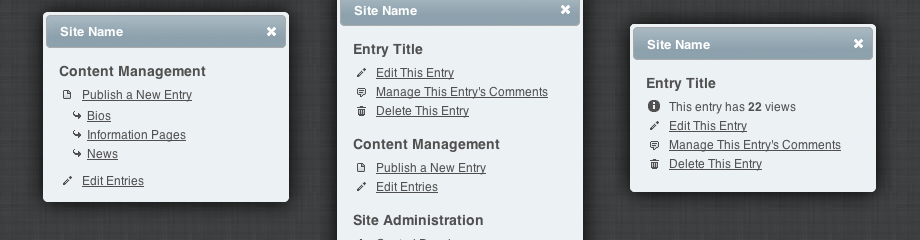
Missing Link connects the dots between ExpressionEngine’s control panel and the frontend of your site by providing an Admin menu to any logged in users with control panel access.
Simplified, intuitive content management
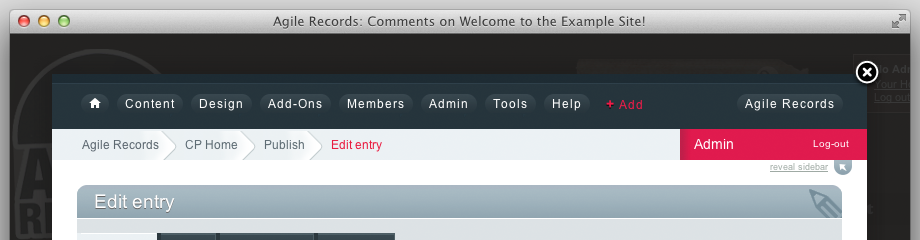
With Missing Link managing content becomes completely intuitive. Just navigate to an entry-specific page on the site, click the Admin button and select from any of the relevant content management controls. Once you’ve made the necessary changes you can simply close the Missing Link window and return to the original page to see your changes in-situ.
Inline edit links & entry menus
Pages will often feature content from several different entries. Some entries may not have a dedicated page of their own. In addition to its main menu Missing Link lets you create inline links which trigger entry-specific menus. You can even create one-click edit links for entries and other data types such as snippets and global variables.
Noticeable notifications
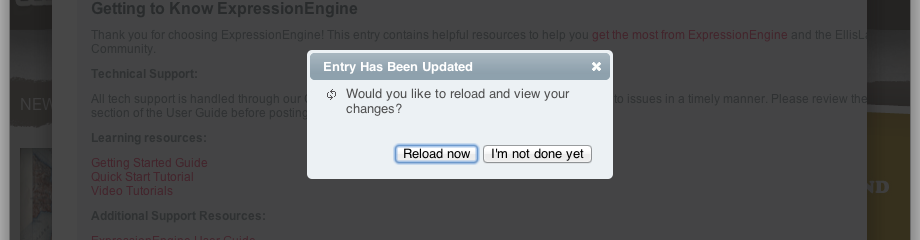
Missing Link will detect when an action (e.g. editing an entry) has completed and then prompt the user to reload the page so that they can view their changes. If you wish you can even set Missing Link to reload the page automatically, as soon as an action is completed.
Linktastic
Missing Link is more than a content editing tool. It provides direct access to all of the key areas of the control panel on every single page of your site. The main admin menu includes the following links:
Entry Controls
- Entry view count
- Edit This Entry
- Manage Entry Comments
- Delete This Entry
Content Management Controls
- Publish an Entry (dropdown)
- Edit Entries
- Low Variables (if installed)
- Structure (if installed)
Site Management Controls
- Control Panel
- Categories
- Channels
- Clear Cached Data
- Custom Fields
- Edit This Template
- Members
- Output & Debugging
- System Preferences
- Templates
- Logout
Frontend editing in 10 minutes or less
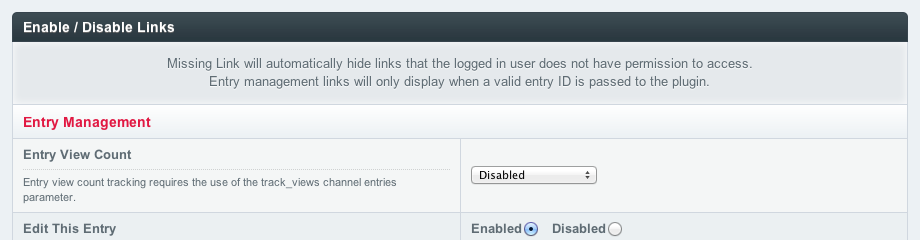
Unlike standalone entry forms you can have Missing Link up and running in a matter of minutes. Missing Link will automatically hide links that the active user does not have permission to access. For example, a content contributer might only be shown the Publish and Edit controls, whilst a superadmin will be shown everything from content management links to site administration links. If you wish, individual links can be disabled entirely via the Missing Link settings page.
Customisable UI
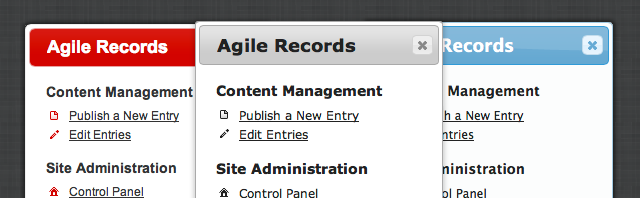
Missing Link supports 25 different themes natively and, because it’s built with jQuery UI, you can easily create a custom theme to match your site.
Full multi-site manager support
Missing Link settings can be configured on a per-site basis and support for site-specific EE control panels is built-in.
Keyboard friendly
Missing Link doesn’t just make managing content simpler, it makes it faster, as you’re only ever a couple of clicks from editing the content you’re viewing. More savvy users can toggle the Missing Link menu by hitting Ctrl-G and can start editing the page they’re viewing immediately by hitting Ctrl-E. Switchboard users can trigger a search at any time via Ctrl-S.
Switchboard integration
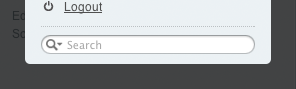 Missing Link will automatically detect whether you have Switchboard installed. If you do, a search form will be added to your Missing Link menus, enabling you to search your entire control panel directly from any page on your site.